How to Compress Images to Exactly 50KB Without Losing Quality in 2025
Learn how to compress images to exactly 50KB without losing quality. Complete guide with step-by-step instructions for websites, blogs, forms, and social media.
Have you ever tried to upload an image and got stuck because the file size was too big? It happens all the time.
Many platforms ask for images under 50KB. Websites, forms, job portals, emails, even page speed tools. You resize the image, lower the quality, and still miss the limit. Or worse, the image looks blurry and broken.
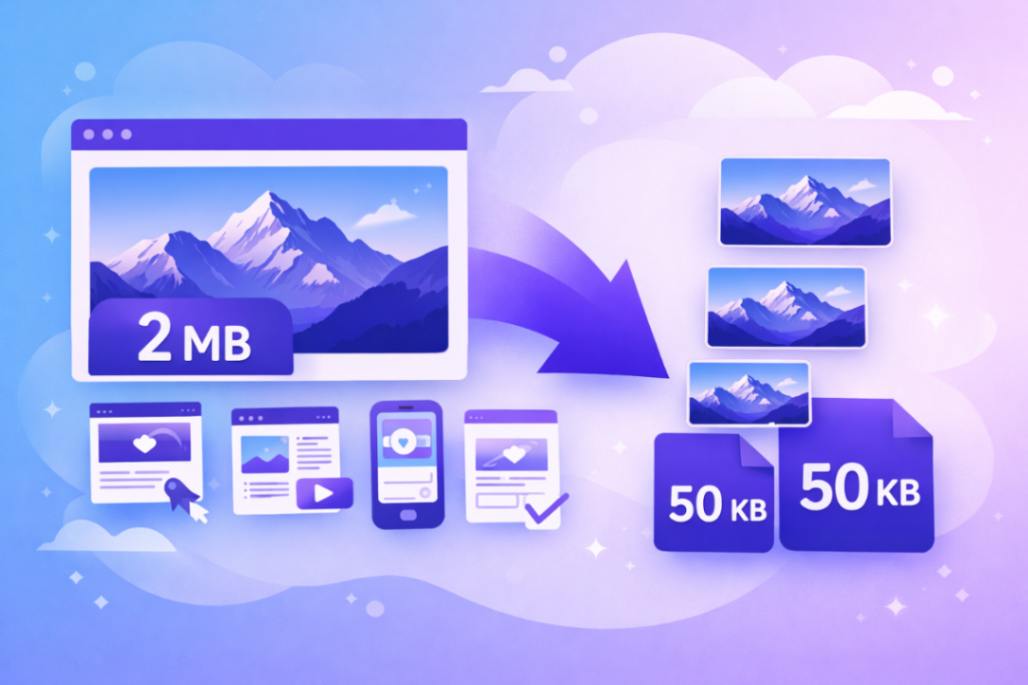
This is where most people struggle.
Compressing images is easy. Compressing images to exactly 50KB without losing quality is not.
In this guide, I'll show you how to do it the right way. No confusing terms. No long technical steps.
- What image compression really means
- Why the 50KB limit matters so much
- How to compress images to exactly 50KB without ruining clarity
- Which settings actually work
- And how a simple online tool can save you hours
If you create blogs, websites, designs, or upload images daily, this will help you a lot.
What Does Image Compression Really Mean?
Image compression simply means making an image file smaller in size. That's it.
But the way most people do it causes problems.
They lower the quality too much. The image becomes blurry. Text looks broken. Edges lose sharpness.
Real image compression is about reducing file size without damaging how the image looks.
When we talk about compressing images to exactly 50KB, we're talking about control. Not guessing. Not trial and error.
An image file has three main things:
- Resolution (width and height)
- Format (JPG, PNG, WebP)
- Quality level (how much data is kept)
Most tools only let you adjust one of these. That's why people struggle to hit an exact size like 50KB.
Lossy vs Lossless Compression (In Simple Words)
There are two basic ways images are compressed.
Lossy compression removes some data to reduce size. If done carefully, you won't notice the difference.
Lossless compression keeps all visual data but removes extra file information. The size reduction is limited.
To reach exactly 50KB, smart lossy compression is usually needed. But the key is balance.
✅ Good Compression:
- Keeps text readable
- Keeps colors clean
- Keeps edges sharp
- Removes only what the human eye won't notice
❌ Bad Compression:
- Adds blur
- Creates color patches
- Destroys details
Why Compressing Images to 50KB Matters
Image size affects more things than people realize.
A heavy image slows down your website. A slow website pushes users away. And search engines notice that.
When images are under control, pages load faster. This improves user experience. It also helps with SEO.
For many platforms, 50KB is a safe image size. It keeps quality decent while staying light. That's why you see this limit again and again.
Website Speed and Page Performance
Images usually take the most space on a web page. If one image is large, the whole page slows down.
When images are compressed to around 50KB:
- Pages load faster
- Bounce rate goes down
- Mobile users get a smoother experience
This matters even more on slow internet connections.
Google also looks at page speed. Faster pages have a better chance to rank.
Upload Limits and Platform Rules
Many online forms and tools have strict size limits. Job applications. Government portals. Email attachments. CMS upload rules.
If your image is even slightly over the limit, the upload fails. Then you resize again. Compress again. Repeat.
That wastes time.
Having images already optimized to 50KB avoids this issue.
How to Compress Images to Exactly 50KB with ImaginMaker
Compressing images doesn't have to be confusing.
With ImaginMaker Image Compressor, anyone can do it — tech-savvy or not.
It handles everything, from exact size to batch processing, while keeping your images crisp and clear.
Here's the step-by-step process:
Step 1 — Open ImaginMaker Image Compressor
Go to ImaginMaker Image Compressor in your browser.
No installation is needed.
It works perfectly on laptops, tablets, and phones.
Step 2 — Upload Your Images
Drag and drop your files or click the upload button.
It supports JPG, PNG, WebP, and more.
You can upload a single image or multiple images at once — batch processing makes it fast.
Step 3 — Set Your Target Size
Select size-based compression and type 50KB (or any custom size).
ImaginMaker automatically adjusts the image to hit your exact target.
No guessing, no trial-and-error.
You can also choose quality-based compression if you prefer to keep maximum visual clarity.
Step 4 — Check the Live Preview
Before downloading, the live preview shows exactly how the image will look after compression.
This lets you check:
- Text clarity
- Colors
- Details and edges
This avoids surprises and ensures your image looks professional.
Step 5 — Compress the Image
Click Compress.
ImaginMaker automatically balances quality and size to hit exactly 50KB.
It preserves all important details while making the file light.
Step 6 — Download Your Image
You can download:
- A single image
- Multiple images at once with bulk download
Now your images are ready for forms, resumes, websites, blogs, or social media.
No more retries, no more blurry images, no more wasted time.
💡 Pro Tips for Best Results
- Start with high-quality original images for best compression results
- Use JPEG format for photos and PNG for graphics with text
- Compress images before uploading to websites to maintain control over quality
- Keep a backup of original images before compressing
- Use batch compression when you have multiple images to save time
Conclusion: Start Compressing Your Images Today
Compressing images to exactly 50KB doesn't have to be difficult anymore.
With the right tool and approach, you can optimize images in seconds while maintaining professional quality.
Whether you're filling out forms, uploading resumes, building websites, or creating content — properly compressed images save time, improve performance, and ensure smooth uploads every time.
Start using ImaginMaker Image Compressor today and never worry about image size limits again.
Ready to Compress Your Images?
Try ImaginMaker Image Compressor now - it's free, fast, and works in your browser!
Start Compressing Images →Share this article
Help others discover this content
About ImaginMaker Team
Creating exceptional digital experiences through innovative design and technology solutions.